
Office Skills Explainer
Office tips, shortcuts and formulas as vertical explainers

Turn one office tip (a spreadsheet formula, a keyboard shortcut or a work-email template) into a 60-90 second vertical explainer (1080x1920) with a single prompt.
Important: this is a skill for terminal AI coding agents (Claude Code, Codex) that runs on your own computer. It is not a prompt for the ChatGPT website. Check the requirements below before buying.
What it makes
You tell the agent the tip and the situation it fixes. It writes a 5 to 6 scene video in a "desk flat" look: sticky-note yellow, indigo and amber, keycaps that press in order, and a small stapler mascot. Formulas type in character by character on a spreadsheet grid, shortcuts appear as keycaps, and an email mock-up shows the wrong line being fixed.
Every video follows the same story:
- The time-waster: the task you keep doing the slow way.
- The old way: how most people do it now.
- The new move: the formula, the shortcut or the email.
- The result: what changes on screen.
- The common mistake: the trap people fall into with this tip.
- Recap and minutes saved: labelled as an estimate, with the arithmetic shown.
The scenes are built from seven blocks: formula grid, keycap combo, email mock-up, before and after, three-step flow, checklist and stat.
Checks built into the kit
- Formulas are computed before rendering. The agent rebuilds the sample grid in Python and checks that each formula gives the value shown. If a function exists only in newer versions, the video says so.
- Every shortcut is given for Windows and Mac, checked against the official support pages.
- No brand names or product screens. The video says "spreadsheet", "document editor" or "email app". Function names (XLOOKUP) and key names (Ctrl, Cmd) are fine. Sample data is invented.
How it works
Open your agent and type a request like this:
Làm video 5 phím tắt tiết kiệm 30 phút mỗi ngày, 75 giây(In English: a video on 5 shortcuts that save 30 minutes a day, 75 seconds.) The agent researches the tip, writes the script, builds the scenes, checks them and renders an MP4. With Pro it also generates the narration. The file is saved in your project folder.
Basic and Pro
Basic: music only, with on-screen text
The tip is carried by the on-screen text and the visuals, over background music. There is no voice-over.
Pro: voice-over with karaoke captions
Adds a Vietnamese voice-over (the default voice is Mai Anh), generated on your computer with the local VieNeu engine, and karaoke captions. Pro needs a one-time voice setup and about 1.2 GB of free disk space. If you prefer ElevenLabs, you can use your own key instead.
What you need
- Claude Code or Codex CLI. You can give instructions in Vietnamese.
- Node.js 18 or newer, Python 3.10 or newer, and ffmpeg (Windows:
winget install Gyan.FFmpeg; macOS:brew install ffmpeg). - Pro only: about 1.2 GB of free disk space for the voice, downloaded once.
- No API key is required. Optional: Key4u (extra artwork in the same style, Suno music) and, for Pro, ElevenLabs.
Install and make your first video
Unzip the package and copy the folder for your edition into your skills folder:
~/.claude/skills/explainer-office-skills-music/    (Basic)
~/.claude/skills/explainer-office-skills-voice/    (Pro)
To install for one project only, copy it into <project>/.claude/skills/ instead. For Codex, use ~/.agents/skills/<folder>/ and start a new Codex session.
Pro only, once per computer (2 to 5 minutes): open your agent and type:
Cài giọng đọc cho skill explainer-office-skills-voice giúp tôiThe agent runs python scripts/setup-voice.py and creates its own Python environment under ~/.agentvid/vieneu-env.
Then your first video: open the agent in an empty folder and type a request like the one in "How it works".
Who it is for
Use it when you want to teach one office tip per video: a formula, a shortcut, an email template, a document or meeting habit.
Not a fit if you want
- Several tips in one video.
- Real product screens, logos or brand names on screen.
- To show formulas nobody has computed and checked.
Frequently asked questions
Will the formulas really work?
The agent computes each formula on the sample data in Python before rendering, and the value on screen must match. Still check the result in your own spreadsheet before you post.
Why does the video not say "Excel"?
The kit keeps brand names and product screens off screen on purpose and uses neutral words instead.
Can I use the videos commercially?
Videos you render are yours for any commercial use. You may not resell, redistribute or share the skill files.
More looks from Animated Explainer
Full set: Animated Explainer
14 looks

Agent diagram
One AI concept on a living node diagram
AI for Business Explainer
Explain AI agents to business owners in a 60-90 s vertical video

Big canvas mind map
A big hand-drawn mind map with the camera following each branch
 Included in ReelCrew
Cinematic explainer
A cinematic science explainer of about 30 seconds
E-commerce & Retail Explainer
Selling online, profit per order and shop tips as vertical explainers
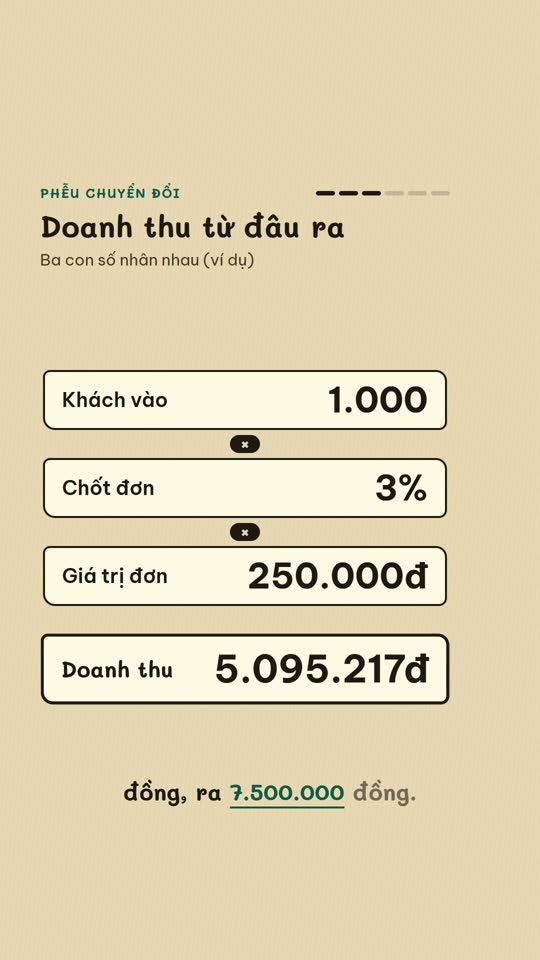
E-commerce diagram
An online-selling concept on a single diagram board
English Learning Explainer
Short English lessons built from common mistakes
Start with one look, step up when you need more
Related looks

English listening
English listening practice: reader, vocab, guess and joke formats

Excel setting
One Excel setting, with a cursor clicking through each value
Sourced clip short
A multi-scene short with source clips and an on-screen credit
 Included in ReelCrew
Archival documentary
An 8-10 minute documentary built from archive material
 Included in ReelCrew
Engraved plate
An antique engraving film for philosophy and history
 Included in ReelCrew
Hand-drawn lesson
A 3-4 minute hand-drawn animated lesson from a talk
 Included in ReelCrew
News photo short
Breaking news told with press photos and a female news anchor voice
 Included in ReelCrew
Paper 3Blue1Brown
Explain a paper 3Blue1Brown style, with formulas built to the narration